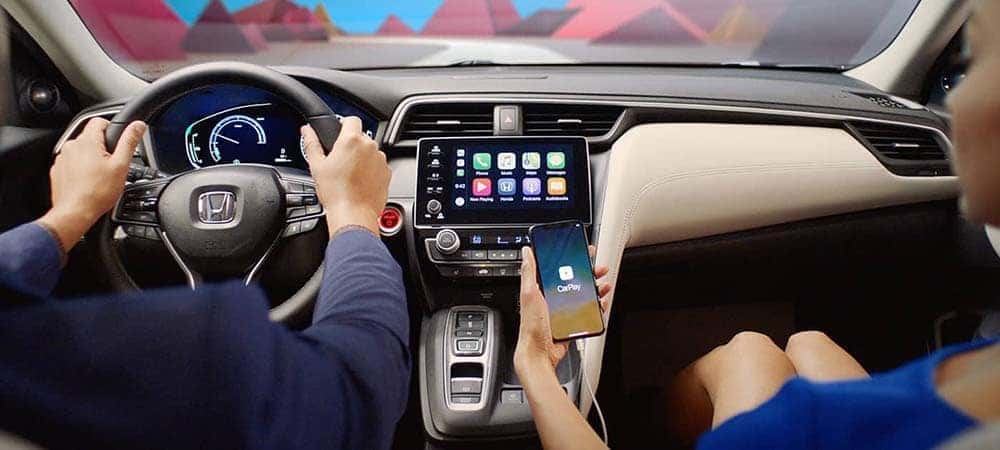
How to Connect Apple CarPlay® or Android Auto®
Many auto manufacturers are equipping new vehicles with improved connectivity without having to use smartphone holders attached their device with a USB cord or adapter. This can cause Walla Walla drivers to take their eyes off the road to play their favorite tunes, use backup cameras, satellite navigation, and more. But with Apple CarPlay® and Android Auto® you can access it all safely with ease. Learn how how to set up Apple CarPlay® and how to set up Android Auto® at Underriner Honda of Walla Walla today!
How to Setup Apple CarPlay®
When connected to your vehicle, Apple CarPlay® runs through your iPhone and takes over the audio display of your car, truck or SUV. By replacing the vehicle’s system, drivers near Tri-Cities can drive more safely as they access the phone’s applications. Here’s how to set up Apple CarPlay®:
- Purchase a phone mount that will allow you to glance at your device and not lose sight of the road.
- Install Apply CarPlay® on your phone. Go to Settings, then General, then CarPlay®.
- Verify Siri is enabled on your device. If necessary, go to Settings, then select Siri.
- Connect your iPhone to your car, truck, or SUV.
- For the multimedia system for your vehicle, verify that CarPlay® is on by pressing Menu. Then select General, then Apple CarPlay®, then ON.
- Learn how to navigate CarPlay® before driving to ensure you aren’t distracted when operating your vehicle.
How to Setup Android Auto®
The functionality of Android Auto® is similar to Apple CarPlay® and is also designed to improve driver safety. The following steps will outline how to set up Android Auto® in your vehicle:
- Purchase a phone mount that will allow you to glance at your device and keep your eyes on the road.
- Make sure your car is Bluetooth enabled then pair your device and car. If your car isn’t Bluetooth enabled, buy a Bluetooth receiver (which isn’t expensive at all) or use USB cables.
- Once your car and device are paired, install the Android Auto® app on your device from the Google Play store.
- Launch the app. Tap the menu button in the upper left corner. Select “Settings.”
- Scroll down a bit, then choose “Autolaunch.” Flip the toggles for your vehicle’s Bluetooth connection and Autolaunch. You also have the option of running the app in landscape mode, which may make it easier to use.
- Become familiar with Android Auto® and how to use voice commands.
Schedule Your Next Appointment at Underriner Honda of Walla Walla
When your vehicle needs maintenance or repairs, you want to ensure you take it to professionals you can trust. Drivers in Dayton know the area’s best-trained technicians will be found at Underriner Honda of Walla Walla. Schedule your service appointment and let our service professionals maximize your vehicle’s performance and give you peace of mind on the road. We also offer plenty of service coupons to help you save so contact us and schedule your next appointment at our dealership near Waitsburg!
More From Underriner Honda of Walla Walla
Honda Pilot vs. Toyota Highlander: Which 3-Row SUV Is the Better Buy Near Walla Walla?
If you are shuttling kids, gear, and the occasional carpool across the Walla Walla Valley, the three-row SUV you choose has to earn its keep every single day. For most families near Walla Walla and College Place who want maximum room for occupants and cargo, easy-to-use technology, and a long reliability reputation, the 2025 Honda…
How to Change a Brake Light on Your Honda, and When to Let the Pros Handle It
On most Hondas, you can replace a burned-out brake light bulb yourself in about 15 to 30 minutes: locate the bulb housing behind the taillight assembly (usually reached through the trunk lining or by removing the assembly from outside), twist out the old bulb, snap in a matching replacement, and test it before you drive….
Should You Pay Off Your Honda Car Loan Early? What Walla Walla Buyers Should Know
Yes, in most cases you can pay off a Honda car loan early, and doing so can save you money on interest and free up your monthly budget faster. The key is to first confirm your loan has no prepayment penalty, then decide whether the interest you would save outweighs other uses for that cash….